 TuneDrop
For iPhone
Turn files into proper songs
TuneDrop gives your own audio files a title, artist, album and cover art, and saves them to the folder you choose. Everything stays on your iPhone.
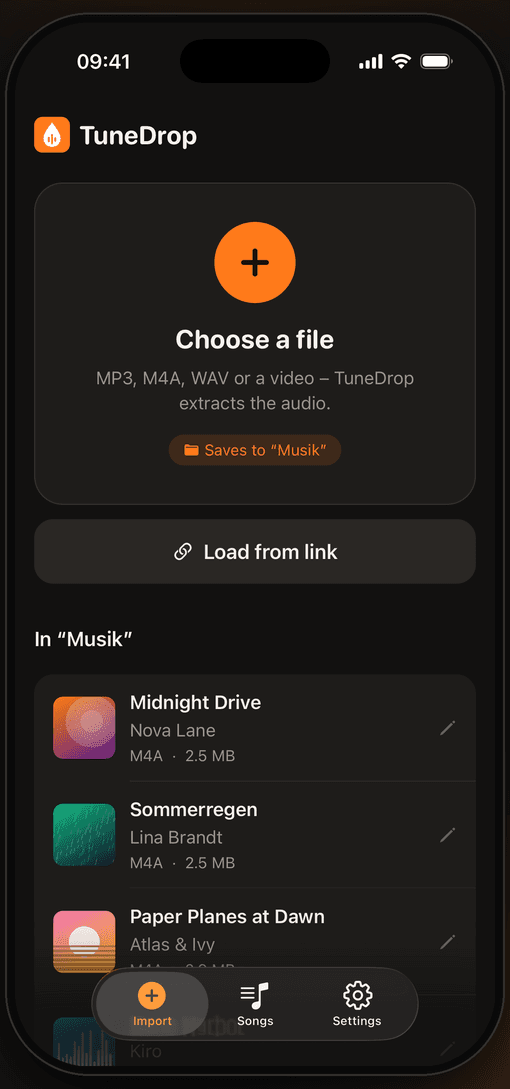
Three steps to a song
Listen to your own songs in Spotify
Spotify can play audio files stored on your iPhone. TuneDrop saves your songs straight to the folder Spotify creates for that – neatly named and with cover art.
Turn on local files
In Spotify, tap your profile picture, then “Settings and privacy” → “Apps and devices” and turn on “Local audio files”.
Choose the Spotify folder
On first launch TuneDrop takes you to the file picker. Choose “On My iPhone” → “Spotify” there.
Save a song
Pick a file, set title, artist and cover art, save.
Listen in Spotify
You find your songs in Spotify under Your Library → “Local Files”.
Spotify is a trademark of Spotify AB. TuneDrop is an independent app and is not affiliated with Spotify. You can use any other folder as well.
Help & contact
Questions, problems or requests? Write to me and I will reply as soon as possible.
kevin.jagodic@outlook.com